


How to Save Creations
On this page
Saving Creations helps you keep track of your favorite Images and access them again from your Profile.
There are three ways to save a Creation:
- From the main Feed
- From the Image details page
- Immediately after generating an Image
Note: Creations do not autosave upon completing generation. In order to keep your creations, ensure that you're saving them after you generate.
How to use Background Generation & History
Save an Image from the Main Feed
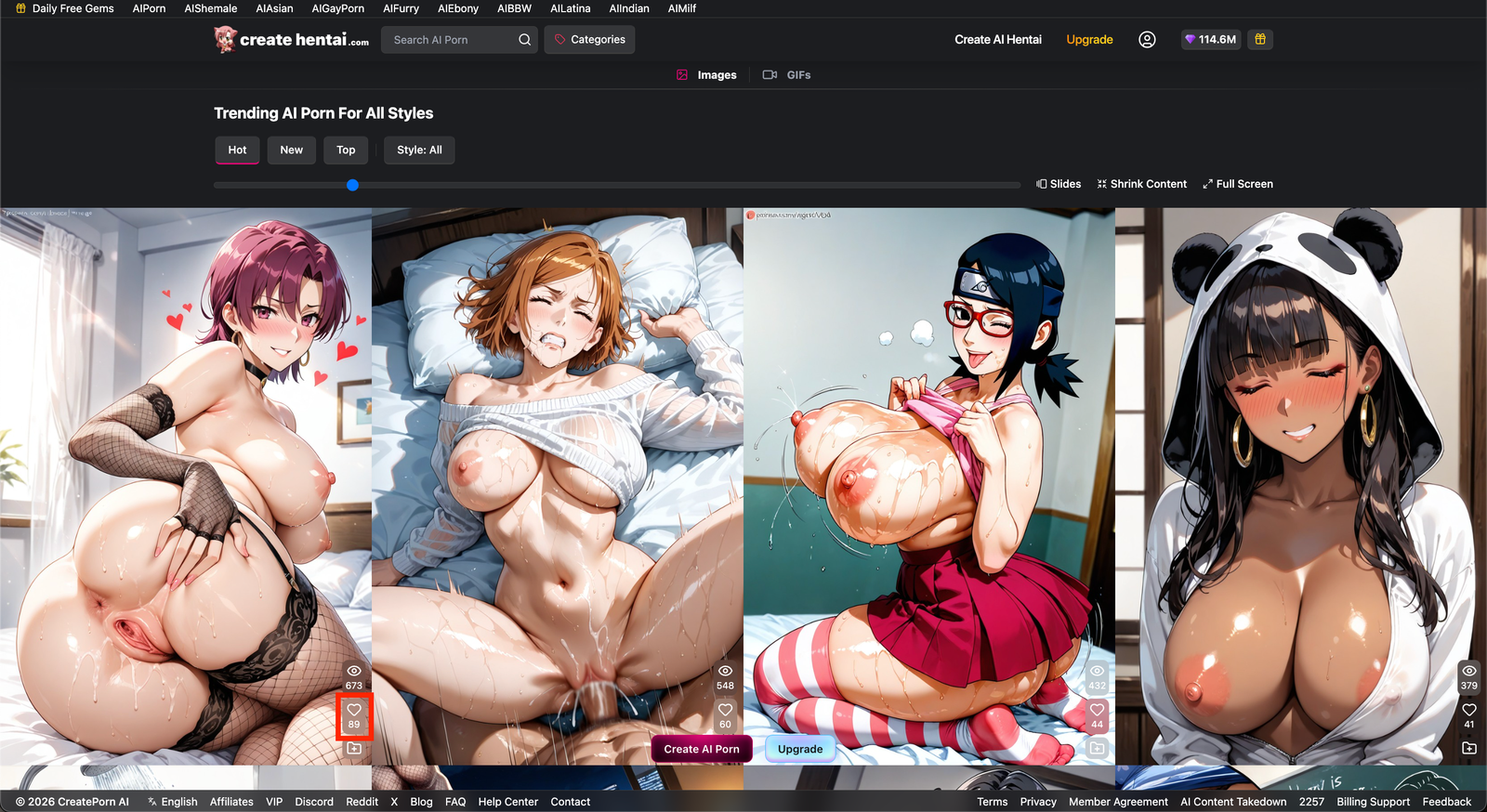
Find the Image
Browse the Feed and locate the Image you want to save.
Select the Like Button
Select the heart-shaped Like button in the bottom-right corner of the Image.
The Image will be added to your saved Creations.
Note: Some Images may contain social media-style overlays with decorative heart icons. These icons are part of the Image and are not connected to the platform's Like button.
Save an Image from the Image Details Page
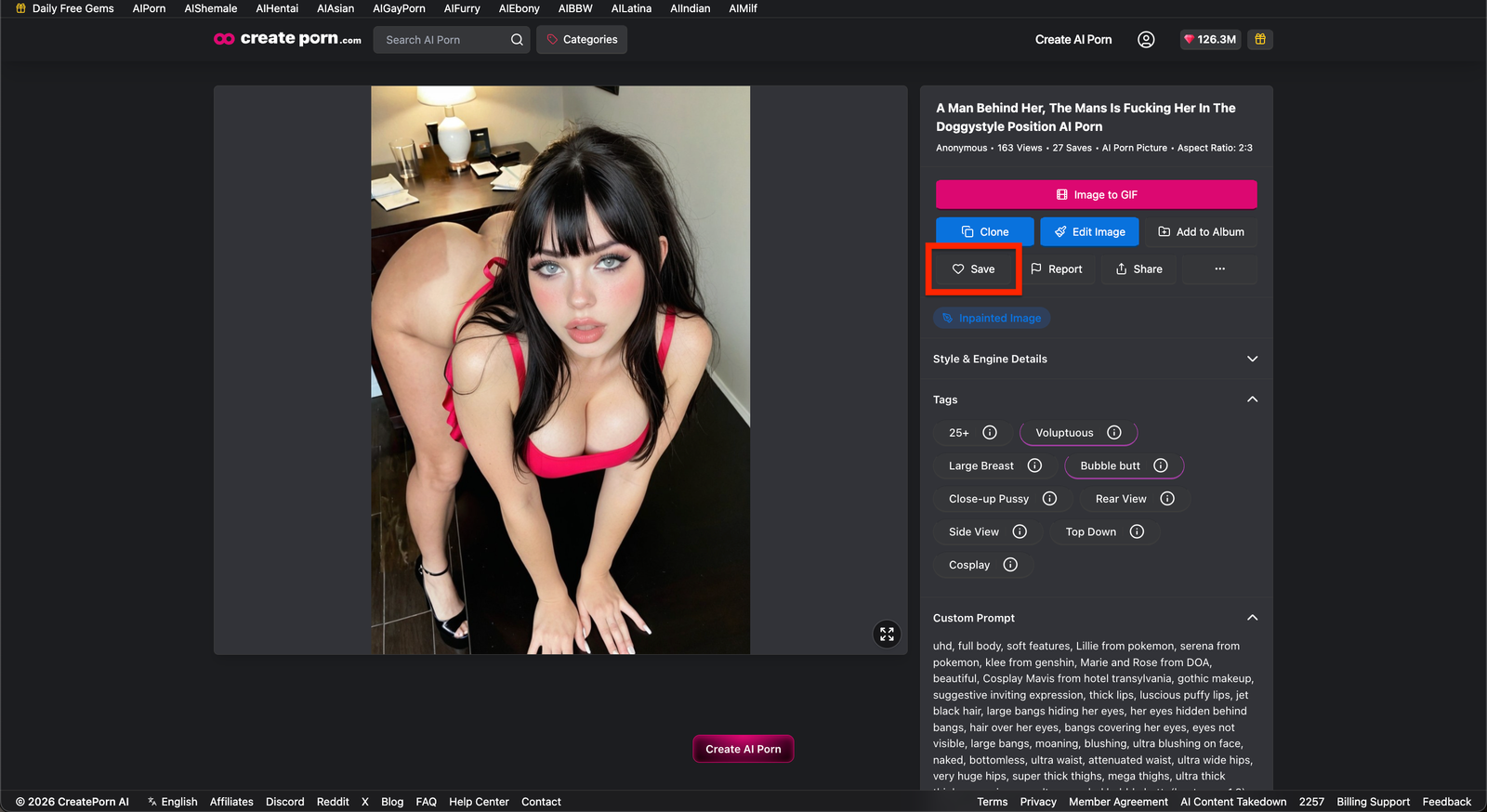
Open the Image
Select an Image to open its details page.
Click Save
Select Save in the top-right corner of the Image details page.
The Image will be added to your saved Creations.
Save a Newly Generated Image
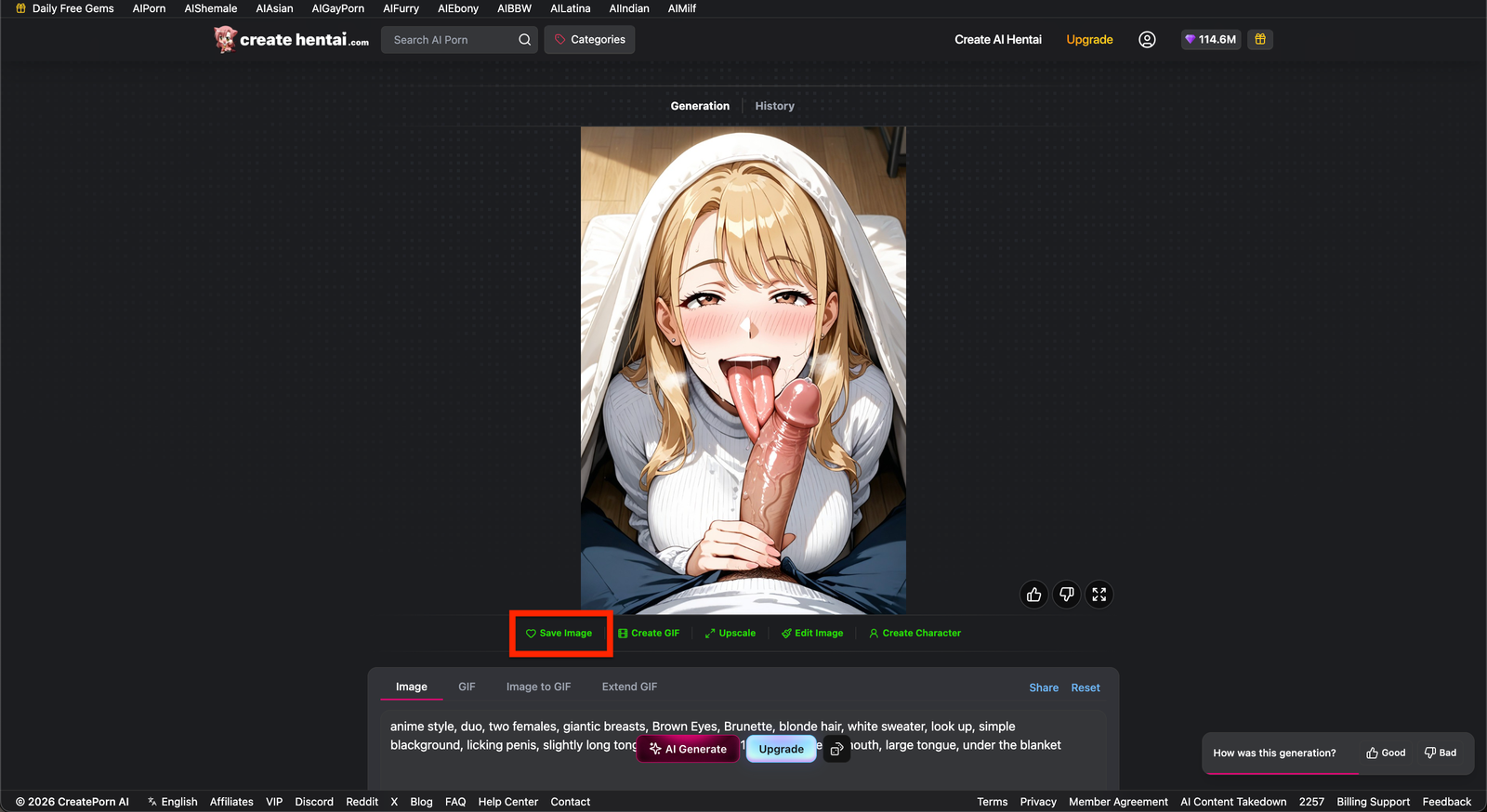
Review the Result
After generating an Image, review the result shown in the generation area.
Select Save Image
Select Save Image below the generated result.
The Image will be saved to your Profile.
Need Help?
If an Image does not appear in your saved Creations, refresh the page and confirm that you selected the correct Like or Save button.
If the issue continues, contact Support and include the Image link and a short description of where you attempted to save it.